
How to Run Caesar II in Windows XP
Playing Caesar II from within Windows XP can be an issue. The following steps will help you get the original DOS version of Caesar II running under Windows XP. If you do not already have a copy of Caesar II go get one then come back here. Thanks to Thomas Crowe for putting this step-by-step together.
Step 1: Ensure that Caesar II is Installed
The standard location for the Caesar II install is in a folder in the root of your c-drive named “caesar2”. Confirm that Caesar II is installed to this location, or copy the game files from the CD to that folder.
Step 2: Download and Install DOSBox
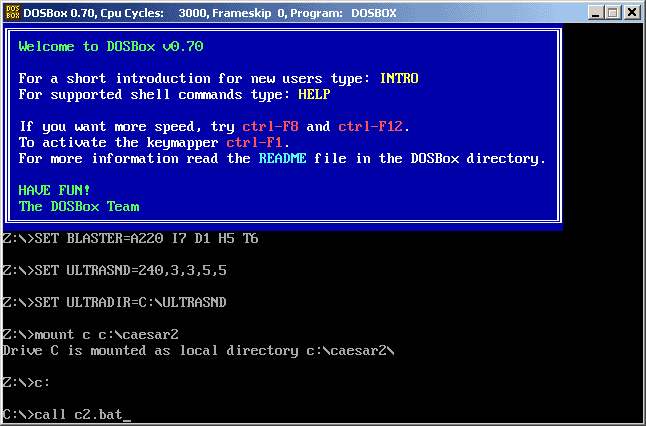
Step 3: Start DOSBox and run the command “mount c c:caesar2”
This will only work if you have your game files in the “caesar2” folder.
Step 4: In DOSBox Switch to the c-drive by typing in “c:”
Step 5: In DOSBox Type “call c2.bat”
Once again, this will only work if you have your Caesar II files in the folder “caesar2” in the root of your c-drive.
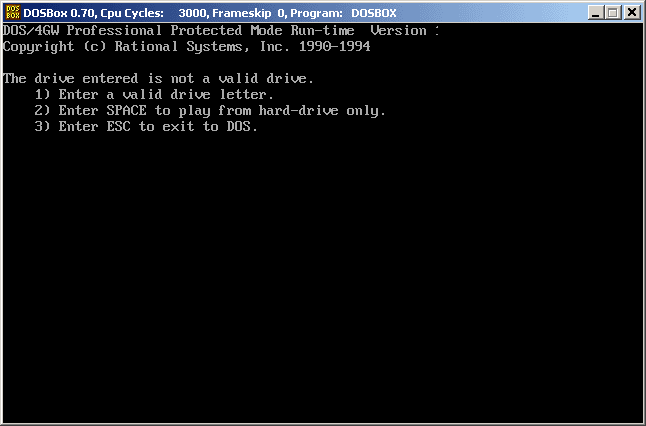
Step 6: Select Option 2 (Hit the spacebar)
Step 7: Enjoy the game!
133 Comments »
RSS feed for comments on this post.
Make sure you use the DOS version of Caesar II (Caesar 2 Version 1.0) or else this will not work.
Comment by Daniel — December 31, 2007 @ 3:52 pm
Gracias!
Comment by Gonzalo — February 11, 2008 @ 5:09 am
Hi! I have done all the 5 first steps but when i type call c2.bat, he said:”Illegal command:c2.bat”
If you can help me this will be great because i like this game..
Thanks.
Comment by Kostas — February 18, 2008 @ 9:01 am
Kostas, it sounds like this may be from trying these instructions with the Windows version of the game. Are you using the Dos version or Windows version of Caesar 2?
Comment by Administrator — February 18, 2008 @ 10:33 am
I think that i am using the Windows version of Caesar 2….
I hope that there exist a solution for this. In any case, thank you very much!
Comment by Kostas — February 20, 2008 @ 4:26 am
Kostas – there are some additional instructions that may be helpful to you. I sent them to your gmail address.
Comment by Administrator — February 20, 2008 @ 11:10 am
Thank you very mutch, Administrator!
Comment by Kostas — February 20, 2008 @ 11:37 am
No problem. Hope it helps.
Comment by Administrator — February 20, 2008 @ 12:10 pm
ok, thank you Administrator .It works with the dos version of Caesar 2.
Comment by Kostas — February 20, 2008 @ 4:45 pm
I too have the “llegal command:c2.bat” problem.
Can you help? I used to play this all the time when I had a win98 version.
thanks.
Comment by vaccyn — February 23, 2008 @ 6:22 pm
Hello, I installed Caesar and run it with dos box, I also choosed hard disk only, but I cnnot fight battles (some file is missing) thanks for reply
Comment by plati — March 11, 2008 @ 1:41 pm
Hi, I also have the Windows version of the game – how do I get it to run properly?
Comment by Michael — March 13, 2008 @ 12:53 pm
ok. I still can’t get it to run. I have Dosbox, I have the file dos version, and it is definitly in my C drive, but still, it doesn’t recognize the c2.bat. help please
Comment by vaccyn — March 13, 2008 @ 4:01 pm
Hi! I have done all the 5 first steps but when i type call c2.bat, he said:”Illegal command:c2.bat”
Comment by Mari — March 17, 2008 @ 8:53 am
I’m having the same “Illegal command:c2.bat” problem with my windows version of Caesar II. I tried having my computer run the program with the compatibility wizard, but nothing happens. I put the cd in, and a screen pops up asking if you want to play. I click yes, and it says the program isn’t found. I click install, and nothing happens. If you can help, I would greatly appreciate it.
Comment by Sarah — March 19, 2008 @ 1:24 pm
Vaccyn, Mari, and Sarah – the error you are getting is probably because you are using the Windows version and not the Dos version of Caesar II. In order to use these instructions you need to start with the Dos version of Caesar II.
Comment by Administrator — March 19, 2008 @ 3:11 pm
I have the same problem as Vaccyn, Mari and Sarah. But I don’t understand how we can start with the Dos version of Caesar II. Because when I was using it with windows 95, it would automatically shut down the pc and go to dos. Now with windows xp, it doesn’t automatically do that.
Comment by Stella — March 21, 2008 @ 9:29 pm
Stella, there is not a guide yet for how to run Caesar II with the Windows 95 version in XP (or Vista) but I will send you some additional details that may be helpful.
Comment by Administrator — March 22, 2008 @ 9:18 am
Thanks for the email. I was trying to run the game by copying the game files from a cd version of caesar2, which turns out to be a windows version. So I got the dos version … extracted the files into my c drive and repeated the steps above. Works perfectly! Thanks a lot! 🙂
Comment by Stella — March 22, 2008 @ 5:28 pm
Hey there. I downloaded a free version of the game and I just run it from my Dos Command Prompt in the Accessories file in Windows XP. I don’t have any real problems with gameplay EXCEPT for 2 things:
1) It doesn’t play any music, just voice and and occasional music during events like Invasions.
2) The game crashes whenever I chose to take command during a battle. It says there is a problem with a file, but I don’t know the name of it off-hand.
Any ideas how to address these problems?
Thanks!
Comment by Adam — March 23, 2008 @ 4:45 pm
Hey,
what are those “game files” exactly?
Thx!!!
Comment by Lisa — March 27, 2008 @ 11:49 am
I sailed through all the steps. it worked like a dream.. the only remaining issue is the sound setting which is not covered in the steps.. I have run “setsound.exe” from the game directory and chosen the first 100% compatible and automatic configuration.. the program says it is done successfully but on running the game still dont get any sound.. I have XP platform. can you help please? ..thanks
Comment by tony — April 5, 2008 @ 12:58 am
I got the answer to the sound problem: just run the setsound program from caesar2 directory and put these values : A220 I5 D1 T3 P330. by choosing to manually put the port details.. it worked for me.. although the auto configure program always returned a success result but no sound was coming. just using the manual configurations solved the problem.. I didnt even have to change the values they were already set to recommended 220, and 5 etc.. here is the link to the site with more details in part 6 about this topic.. http://www.dosgames.com/xphints.php .. take care
Comment by tony — April 5, 2008 @ 3:04 am
I have the same problem with “Illegal command:c2.bat”, because I probably have the Windows version of the game. What can I do?
Comment by Karin — April 5, 2008 @ 8:00 am
Karin..If you having a windows version is causing a problem then I can send you the DOS version of this game in Zipped form. I hope the admin wont have any problem with that. if you want me to send you the game then I suggest you make a temporary email account and post it as a comment here.. I will send over the game to you..it is working for me on my laptop and it will surely work for you, regards
Comment by tony — April 5, 2008 @ 12:08 pm
Missing combat part: guys.. is anyone else missing the combat at provance level like me? I game closes if I choose to take charge of the battle
Comment by tony — April 5, 2008 @ 12:11 pm
Thank you for the additional details Tony. To get rid of the error “Error Loading battle data – RO2SWDA.PL8 not found” please download this file to the same directory as the rest of your game files:
RO2SWDA.PL8
Comment by Administrator — April 6, 2008 @ 8:42 am
about combat issue: the exact error reads … ” Error Loading battle data – RO2SWDA.PL8 not found”.
I didn’t read comment number 20 which is stating the same problem like my comment 26. sorry about that. so the missing file is “RO2SWDA.PL8”
As far as the sound issue is concerned I will say run the setsound program and enter the A220 I5 D1 T3 P330 settings by choosing the manual configuration instead of auto detection. the sound issue was resolved for me by following this step. regards
Comment by tony — April 6, 2008 @ 4:03 am
Illegal command issue: Please don’t forget to “change drive to C:” before running the game with c2.bat.. you will get this error every time when the active drive is Z: ..(Admin.. my appologies for flooding the message board)
Comment by tony — April 6, 2008 @ 4:09 am
First, I’d like to thank the administrator and everyone else. Without you all, I wouldn’t have known how to begin to run this game.
I, too, get an error message when I choose to take charge of a battle, but mine says “RO2SPRB.PL8 not found.”
Comment by Joseph — April 11, 2008 @ 11:47 pm
RO2SWDA.PL8 is not the only file the game can need for a battle.
There is a PL8 directory in the Caesar 2 cd, he contains 18 Mo of data.
They are surely dont all needed (when you read names) but i have just
put all the folder in my Caesar2 directory, cause am lazzy lol.
Comment by Jean — April 12, 2008 @ 12:33 am
i have the same problem with the illegal command cause i have the windows version.
but where can i find the dos version?please help me.i love this game
Comment by yiannis79 — April 18, 2008 @ 2:15 pm
I am having the same problem. When I go into battles it says “RO2SPRB.PL8 not found”. If someone could help me that would be awesome because I would really like to play it some more.
Comment by Kris — April 20, 2008 @ 4:20 pm
Hi, I can’t even get the game to install on my vista computer. Any advice?
Comment by Sean — April 21, 2008 @ 4:08 pm
How can i get caesur 3 to work?
Running xp.
Comment by Scott — April 23, 2008 @ 10:05 am
I’ve too the message illegal command c2.bat… I think that I’ve the dos version and I don’t understand why It doesn’t work..
Thank a lot for your help
Comment by Ben — April 24, 2008 @ 6:59 am
Search DosBox on google.
I have vista and i play the Dos version with Dos Box.
For the battles, if you want to be sure a missing file dont crash the game, put the PL8 folder of the win version in the same folder of C2.bat =]
You can find the entire CD here : http://www.abandonware-france.org/ltf_abandon/ltf_jeu.php?id=787&fic=liens
(french) But try “House of the underdogs” on google, you will find a site with huge ammount of old game in english, i am pretty sure Caesar 2 CD is in them.
Comment by Jean — April 26, 2008 @ 5:53 am
Sorry : not the folder, but all .pl8 files in the same as C2.bat
(sorry i am not english)
Comment by Jean — April 26, 2008 @ 5:55 am
Hi! i also having the same problem with Stella. Could you also email me the game file? thanks.
Comment by kerwin — May 6, 2008 @ 5:49 am
Hi! I am also having the same problem as of most of the people who commented on this page, Everytime i type in call c2.bat it comes up with Illegal command. Ive been trying to get this game to work for months and have had no luck PLEASE HELP appreciated.
Comment by Debra — May 6, 2008 @ 7:44 pm
I also have the same problem and am getting the illegal comment field returned. Could you send the email on to me also. Many thanks.
Comment by Tega — May 27, 2008 @ 1:36 am
Hello,
I have the original cd of Caesar 2 that I want to install on XP. I pop in the disk and the autoplay brings up the Install/Cancel dialog. I select Install and it plays a little tune and starts a “Sierra On-line Setup” block down on the task bar. Then it just sits there. Win Task Manager indicates that it is running but there is no processor demand.
many thanks.
Comment by Rob — June 9, 2008 @ 6:40 am
Hey, guys. I have a nice and quiet solution to the battle problem (RO2SPRB.PL8 not found)
Win version, dos version, i don’t care. Just download all the *.pl8 files from http://www.sailor.wz.cz/_pl8.rar, copy the files to you caesar2 directory and you’ll be fine (And you don’t have to install caesar strictly into c:, the game will work on any drive).
I just hope there won’t be any trouble with admins, but i guess since i’m not posting the whole game but only a few files to increase the in-game performance for people that already DO have the game, it should be fine. I hope.
Cheers
Comment by Eman — June 14, 2008 @ 2:34 am
thanks for the tips, it’s work, but does anyone know how can i play it in fullscreen because i think it’s too small to play it using dosbox. thank u
Comment by yuzarian — June 18, 2008 @ 6:01 am
Having the same exact problem as Rob up there. I cant install it. I press install, the old sierra sound goes off and the window does nothing. Would love some help as I remember enjoying this game alot.
Comment by matt — June 25, 2008 @ 1:22 pm
I am having the same problem as a lot of people with c2.bat and it is coming up “Illegal command”. How do you run it from the DOS mode? I think I need the extra instructions, thanks!!
Comment by Denise — June 28, 2008 @ 11:27 am
I am having the same problem has many people above. First, I try to install and the Sierra On-line Setup music plays and createst a block on the taskbar and then stops and nothing else happens. Second, I tried the instructions above but receive the “illegal command” message. Thanks for any help.
Comment by Sean — June 30, 2008 @ 6:23 pm
Good to see so many C2 enthusiasts.
I have tried 2 routes (my experience is identical to Sean’s (post 46):
1. Installing my old Windows/DOS C2 CD-ROM, to no avail (the legendary “illegal command” line again when using DOSBox). Maybe somebody (Tony? – post 25) would be kind enough to let me know where I can get a DOS version of the game that’s Vista-friendly (as that seems the best option)?
2. As my French is passable, I looked into the site Jean (posts 37 and 38) mentions. Jean, did you download from there and if so, could you get it to work?
Thanks for any help; I would be very interested to hear of anyone who’s managed to get this game going using Vista.
Richard
Comment by Richard — July 1, 2008 @ 11:51 am
I am pretty sure I have the DOS version of the game but when I type in call c2.bat it says it is illegal command. I really love this game. If anyone has a way to get this game working with Windows Vista. Please let me know. Thanks so much!
Comment by Meagan — July 14, 2008 @ 8:24 am
to go to fullscreen in dosbox just hold down ALT and press ENTER that should do it, and to go back to window just repeat process also f11 and f12 works to slow down the game and speed up the game.
Im having a problem, I want to play the game to the end and capture all of the provinces… you know keep playing after getting 5 promotions, but I cant!! it just tosses me into the first screen =( dosbox or no dosbox, any one have a solution? il keep checking regularly.
if there is a mod or is that the whole game?
Comment by Igor — July 15, 2008 @ 12:28 am
Hi, I just downloaded the game and, like all the others, illegal command shows up… Instructions would be helpful, thanks 🙂
Comment by James — July 18, 2008 @ 7:40 pm
for all people who try to install it on XP or Vista, you just need to change your theme to Windows Classic
and then you will be able to see the setup window……..
take care guys and have fun
Comment by John — July 31, 2008 @ 9:06 pm
I am having the same problem as most others, getting the prompt of a “illegal command: c2.bat.
PLEASE HELP!!
Comment by Kevin — August 1, 2008 @ 2:22 pm
Hi, i believe i may also have the windows version of this game. although the game itself says it can be used on dos. I tried to un-install it on windows, but its saying the file was corrupted or something. could i just delete it? im not quite sure what to do…would you be willing to send me an email.
thank you very much.
Comment by gerry — September 1, 2008 @ 8:49 am
I have the same problem as a few other people. I run the autoplay, and get the install or quit option with the C2 logo in the background(No music or sound at this point). After I hit install, windows says it is not responding, but it’s not using any processor speed. The buttons go away and after a minute or two the autoplay screen disappears as windows shuts it down. Changing my theme doesn’t help, nor does putting the install and autoplay files into Win95 compatibility mode. Any suggestions?
Comment by Stephen — September 2, 2008 @ 4:31 pm
Sorry forgot a few things.
1) I have the windows version of C2
2) I have the exact same problem with Lords of the Realm 2
Comment by Stephen — September 2, 2008 @ 4:33 pm
I have the same problem with “Illegal command:c2.bat”, because I probably have the Windows version of the game. What can I do?
Comment by ellen — September 14, 2008 @ 3:55 am
Ok.
To Play C2 in XP/Vista
1. Get the newest available version of dosbox.
2. Make a directory called caesarII in just your c drive (location will be c:caesarII)
3. Put ALL caesar II game files in the folder you just made
4. Run dos-box
5. Type exactly: mount c c:caesarII
6. type exactly: C:
7. type exactly: c2.bat
8. Notice I didn’t use the expression “call.”
9. When it asks you to hit space to run off hard drive, do so.
10. When you see the sierra logo appear press alt-enter for full screen and enjoy.
Sound Instructions
1. Do steps 1 – 6 as stated above, then follow my next directions perfectly.
2. type exactly: setsound
3. Use arrow keys to highlight “Select and configure MIDI music driver” and press enter.
4. Scroll through the list until you see “Creative labs sound blaster or 100% compatible” and press enter.
5. Select “Attempt to configure sound driver automatically”
6. Repeats steps 4 and 5 for the digital audio driver.
7. Goto done.
8. Restart Dosbox
9. Follow my instructions for “To play C2 in XP/Vista” down to the keystroke.
Hope this helps you all
Comment by Shane — September 23, 2008 @ 8:33 pm
Now that I left a comment the size of asia, I have a question of my own. I’m having some texture problems with large palaces. Is anyone else experiencing this? If so, do you know of a fix? The textures seem to be pulling random pieces of the 3×3 forum or something. Any help is appreciated. Thank you.
Comment by Shane — September 23, 2008 @ 8:37 pm
The behavior of Palaces showing parts of forum etc is usually seen when an evolving block expands to palace not from houses alone but from gardens or just high ratings empty ground.
Comment by Martin — September 24, 2008 @ 7:16 am
I can’t take screenshots in Caesar II with either Screenprint button or Fraps…anyone have an idea how to get screenies? it is running fine on XP SP2 Btw, i use VDMS for sound but so afar I can run it fine with the CD 🙂 just no screenshots
Comment by CrisG — September 24, 2008 @ 7:45 pm
Thank you Martin
Comment by Shane — September 24, 2008 @ 9:51 pm
Still looking for a way to take screnshots in native CII, i know you can grab em with Dosbox so i may use that, but wondered if anyone had success with any capture programs? for some reason, not even Print Screen will get a shot thanks
Cris
Comment by CrisG — September 26, 2008 @ 5:27 pm
Everything loaded perferctly. Here’s my problem. The only way I can turn off “voice” is to turn off all sounds(I like the sounds!). Anyone know how to fix this problem?
Thanks in advance.
Comment by Ricky — October 25, 2008 @ 9:49 am
when I run c2 all the pictures are black. Have any Idea how to fix that?
Comment by Kyle — November 8, 2008 @ 2:08 pm
Great…same problem. Windows version downloaded I’m sure of it. c2.bat doesn’t work at all for me. Tried a number of times to get this sucker crackin’ and it’s not working. If possible can I get the hook up on that zip file for the dos version? I’m itching to play this game so bad I can taste it! Help me out, please.
Comment by Raul — November 20, 2008 @ 10:08 am
While I have taken steps to secure a DOS copy of the game, I would still like to use my Windows 95 CD instead. Has anyone had any luck on making this run? When I start a game, it goes immediately back to the options and will not let me play unless I select the tutorial. Although I can then exit the tutorial and play, two bad things happen after that: I cannot fight battles myself (the game immediately crashes) and I can only play one province. Upon selecting the next province, apparently I end up conquering it, too, and so on until I run out of provinces…a great way to conquer the known world, but no fun. Selecting 256-color mode is worse than useless, and selecting Windows 95 mode does not help. Any useful advice would be appreciated.
Comment by BroadwayPhil — November 21, 2008 @ 9:17 pm
Hi I am having the same problem above with the “type exactly: c2.bat or call c2.bat” extension I am using the windows 95 version of the game what are the additional steps?
Comment by Nate — November 24, 2008 @ 3:14 pm
Hello. I really want to thank all of the people involved in this project. It’s great to see so many people who still lovew this game as much as i do. I still have the original disc (wich is a miracle considering it belonged to my grandmother) and i wanted to play it again on my computer. I managed to play it with DOSbox and the feeling is roughly the same, still there’s a thing that bothers me and i still can’t get it to work: The sound.
You see, when i played the game back then (1996 on my grandma’s Aptiva), there was this MIDI sound music that played in the background and changed accordingly to what was happening at the moment (if there was a fire, if there was an invasion, or a plague, or whatever. Even when you solved the problem, it changed). I’ve tried everything to find out how to emulate the sound, given the fact the disc still contains the files somewhere. I’ve tried changing the drivers in “setsound”, trying to play it trough VDMsound, and even cheking at the IBM aptiva hardware listing to check if there was something special about it, but i still can’t get it to throw the MIDI. It still plays the regular ambient sound that goes with every structure you build (and the “woodland” sound you get in province mode), so that is better than nothing, i suppose. But still…
Has anyone managed to get the original MIDI background sound?
I hope there’s an answer somewhere. Excuse the wall of text, i just wanted to give some details and annecdotes. Thanks.
Comment by nelson — December 2, 2008 @ 9:09 pm
Oh, sorry to bother again. Another details that maybe can help:
– At first, I tried playing it directly from Windows (i have windows XP). I got some strange music i’ve never heard before and the game splitted out in different windows, so after tasting the infamous “windows version”, i looked away and saved the disc. And no, that’s not what i’m looking for (except for the music in the main menu. That sounded a lot like the original).
– Then i got a copy of the DOS version. I extracted it, then played through Windows (worked out by using the “c2.bat” executable). It played like the DOS version, but even with the CD on it still didn’t get the sound.
– I mounted the CD drive in DOSbox and, even when the game recognizes it, it still didn’t get the sound (however, the battles can be fought manually)
– The only thing weird about the Aptiva was that the sound card and the modem where in the same device (eek!). But i guess that has nothing to do with this, does it?
– My version of the disc (the “about” part in windows version) says “Caesar2 for Win95. v1.01”. The DOS versions i got all say “v1.00” before thay display the main menu. I really hope that has nothing to do with the problem.
So, if someone knows what’s the issue, or is guessing what could be done, just tell me, i encourage you. I’ll still try to twitch the config to see if something happens.
Comment by nelson — December 2, 2008 @ 9:34 pm
Hello i have a problem with: file not found – code6
can u please help me?
Comment by Alexander — December 3, 2008 @ 12:47 am
Is it posible to play the game al the way to the end untill I take over the whole map?
Comment by Igor — December 9, 2008 @ 10:52 pm
Hello! I have the game, but although I have been trying to use your methods, it still says that the c2.bat is illegal. Everything I have is correct, but it is still refusing me access. Help? 🙁
Comment by Char — December 14, 2008 @ 2:59 pm
Well my ceasar buds, think ive solved the little battle problem for you, heres a step by step(by step):
ps.Im assuming ya can get everything working properly up till you give the thumbs up to command. This means all you need are them dratted pl8 files.
1. Go to folders in my computer. if you installed the cd onto your c drve there will be a caesar2 folder. right click and select properties. deselect the READ ONLY box and apply it to all subfolders and such
2.Go down to the cd drive. do the same for the pl8 folders and ignore all attempts to stop you. you can do it.
3. move the pl8 folder from cd drive to desktop
4. open folder, highlight all its contents and move them to the caesar2 file in the c drive.
You should be ready to ball some bad guys in a war, if not make sure all the pl8 files are standing alone in the caesar2 file in c drive. Do i feel like a loser for working this hard on this? yeah. Do i feel like a computer hoss using all this dos nonsense? absolutely. i guess i need someting to do to get through the holidays with the family. Merry Christmas yall
Comment by D-flavis — December 25, 2008 @ 8:12 pm
THAAAANK YOU SO MUCH!!! LoL Good work, I cant believe you took the time out to figure a minute part of a game from 1995. Its so good to see such a fan base for a classic game. 1 Million people downloaded dosbox and counting, so I guess Its not surprising that some still have and play this game as it was very popular.
Comment by Ferociousbunny — December 27, 2008 @ 9:34 pm
i seriously dunno why i did either
Comment by D-flavis — December 28, 2008 @ 6:13 pm
Is their any way to enlarge the window that views the city in Caesar II? I have to scroll constantly to see the city.
Comment by Clint — January 4, 2009 @ 8:41 am
Hi everyone, I’m having similar problems installing this game in dos box from my windows cd version. Up there the administrator sent some people emails with additional comments on how to avoic the “call c2.bat” error? Could someone either forward the email with extra tips or post it on the wall for the benefit of the rest… Thanks. PS. love this game 🙂
Comment by Lindsey — February 1, 2009 @ 9:28 am
Hi, i’m also having similar problems installing after following “Comment by Shane — September 23, 2008 @ 8:33 pm” after typing the command c2.bat, it comes up with illegal command havevesa.exe and illegal command ps.exe. any help would be appreciated.
Comment by andrew — February 16, 2009 @ 3:52 am
if you have the WIN95 disc version (Not sure if applies to all, but prolly), you can install the DOS version by using the INSTALL.EXE program on the CD.
Will run perfectly after. (V1.2, apparently)
Comment by Sam — February 20, 2009 @ 7:34 am
Could someone please send me the dos version of this game?
Comment by Luke — March 6, 2009 @ 4:38 am
I have not found a solution for the “Battle” problem for the DOS users.
Comment by Josh — March 13, 2009 @ 10:02 pm
I found the solution to the battle problem, “RO2SPRB.PL8 not found” (None of the previous solutions worked). Go to http://www.4shared.com/file/35105467/bef8135f/_pl8.html, download pl8 folder, select all of the files, then drag them to your “c:caesar2” folder. After you do this, start the game, and the battles should work.
Comment by Josh — March 13, 2009 @ 10:15 pm
Hey yall…I’m kind of computer illiterate…but I just found the Caesar 2 disc when I was cleaning out my closet, and decided I really wanted to play. I have a Gateway laptop with Vista…can someone please give me directions on how to get it to work? When I was a kid I used to just put the CD in my computer, and a Window would pop up with instructions to follow…now when I put the disc in, nothing happens. Can someone help me? Thanks so much!
Comment by Becky — March 15, 2009 @ 8:02 am
I’m having trouble with setsound. I cant get it to a place to let me input the “A220 I5 D1 T3 P330” values mentioned in comment 23; “Comment by tony — April 5, 2008 @ 3:04 am”
Comment by Brandon — April 7, 2009 @ 3:51 pm
To specify: im looking for what Nelson in comments 69 and 70 was looking for; the ‘MIDI’ files. I have c2 working in dos now (thx), and I also have the original win95 disc. I ran a search for both *.mid and *.midi files in my DOS files, in the win95 c2 folder (I installed that version aswell), and on the CD itself. The search found nothing.
I was able to get the win95 to work as normal in all aspects (including the sound), but when I take charge of a battle, the game crashes. The sound files are obviously there somewhere, but not as MIDI files. What else could they be saved as? And I don’t think they are WAV files either
Comment by Brandon — April 7, 2009 @ 4:36 pm
Does anyone have a problem with thier promotion? Whenever I select a new province, it just fills it as if i have completed it and asks me to select a new one
Comment by Tom — April 24, 2009 @ 10:18 pm
I have the CD version, and compatability mode in XP blows (I hate Microsoft)… Any idea how to get this to run on my PC?
Comment by Maggie — May 28, 2009 @ 1:38 pm
i get to step 5 and it tells me its an illegal command. help please?!
Comment by Hayden — June 10, 2009 @ 9:54 am
Thanks to everybody that helped me with a problem about the battles ena “PL8” files. When I extracted the “PL8” files in the same directory of c2.bat, I could battle again, but the sound “turned off”.
Any advice/hint?
P.S: sorry everybody, but I’m not “english”. (Brazil)
Comment by Arthur — June 14, 2009 @ 2:32 pm
How can i make work the videos and music . Im playing without cd because i copied the files into the unit c
Comment by Elmer — June 30, 2009 @ 12:05 pm
Hya folks,
The peeps who wonder about the midi files should look at the .xmi files. These contain the midimusic you hear ingame. These are made with Miles Soundsystem. Go here: http://www.radgametools.com/
You find the videoformat used in the game there as well. The .smk files contain the video’s used for events. They are made with Smacker also from Radgametools. So modders take your chance, the tools are there.
Cheers!
Comment by Martin — July 28, 2009 @ 3:32 am
Had a problem with c2.bat.
Solved it by copying the file from HD folder onto a floppy (omg, found one in a closet O_o), or can just emulate it onto disc A:
Problem solved =)
Music problem- you will have to run the autorun and push the right button.
Then you will have to make sure that the DOS uses the sound card, it will say that MIDI etc. is off.
By pressing two options above those and selecting your card (which should show 100% compatible) it should automaticly enable them.
After that it should play sound.
Sorry for such crappy walkthrough with no details and names of menu options, but it should do it…
Had to install it for my grandma, who really loved the game =D
Comment by Sevka — August 11, 2009 @ 2:16 pm
There is no *.xmi files in the DOS version. SO it looks like DOS version has no music.
Comment by unknown user — August 11, 2009 @ 6:31 pm
Yes there are .xmi files in my DOS version, 5 of them. On my cd they have their own folder. I always make sure copying them together with all other gamefiles to my HD in the caesar2 folder so I won’t need the cd for gameplay.
Comment by Martin — August 16, 2009 @ 3:03 am
Hi, I could install and run the DOS version without using DOSbox, but the graphics (colors) are bad, even running in compatibility mode. Any idea?
Comment by Léo — August 17, 2009 @ 5:48 am
@ martin:
I downloaded from some abandonment website probably that is why they are gone. Anyway where we can find where to get the XML files or care to upload? 🙂
Comment by unknown user — August 19, 2009 @ 9:13 pm
Will this work for windows Vista?
Comment by Dan — August 21, 2009 @ 6:40 pm
@ Leo
You could try changing windows to 16bit color, often helps. Original DOS game probably 8bit.
Comment by Martin — August 23, 2009 @ 9:50 pm
To all of those (like me, briefly) who kept getting the error message “Illegal command:c2.bat”. I was typing in ” call c2.bat_ ” and then realized that the underscore I was typing was actually the command prompt on the screen shot. Once I typed it as stated… worked right away and still lovin’ this game 7 years later.
Comment by Bill — September 26, 2009 @ 1:35 am
Amazing! I couldn’t get my USB portable drive to mount on FreeDOS but this works just great!
Comment by Stephen Taylor — November 9, 2009 @ 9:54 am
hello tried using dosbox – am getting the following error message when i type call c2.bat
illegal command: havevesa.exe.
illegal command: ps.exe.
anyone got any ideas??
Comment by big al — December 2, 2009 @ 2:29 pm
D-Flavis @74, you made my sister’s Christmas.
So if you have the Version 1.1 (Windows 95) CD, you can’t run the installer, but it’s still totally usable. Basically, you just want to copy the folder named “HD” to whatever you use as your DosBox C: drive, rename it to something convenient, and then dump all the files from the “PL8” (when you copy the PL8s, it should say it’s overwriting a single pre-existing file), “SMK,” and “XMI” folders into it. The former “HD” folder should be flat, i.e. no subfolders.
Once that’s done, you should be able to run the game with:
c:
cd caesar2 (or whatever you decided to name the “HD” folder)
c2
This is working fine for my sister, using DosBox on Mac OS X.
Comment by Nick Fagerlund — December 25, 2009 @ 2:12 pm
I believe that I have a work-around to the ‘auto conquer’ problem that happens when you are promoted, and then each new Province is conqured when you select it.
The problem only seemed to occur in the Windows 95 version of CII, so the solution is to have both the Windows and the DOS version installed, and then swap the save file between the two versions.
Here are the steps. (Starting with the Windows version)
1. As soon as you are nearing your promotion, start saveing often; every few months or so. (The name of the save may need to be shorter than 8 letters)
2. When you are promoted, decline the offer and quit Caesar II without saveing.
3. Go to where the Windows 95 version of Caesar II is installed and copy the .sav file out of the ‘Save’ folder.
4. Go to where you installed the DOS version of Caesar II and paste the .sav file.
5. Launch the DOS version and load the .sav file. Wait until you are promoted.
6. Select your new province and then save your game immediately. (I suggest you save as a new file, eg: ‘promoted’)
7. Quit Caesar II and copy the new .sav file back into the ‘Save’ folder of the Windows version.
8. Launch the Windows version again and load the new game.
Of course, if you are happy playing the game in DOS, you won’t need this.
I hope this helps.
Comment by Shannon — January 28, 2010 @ 9:59 pm
for all you trying to find all the files to play all parts of the game, I have complied them in a single file, if you have had trouble with DOS, sound, videos, noise, or the battle mode, then this should solve your problems. Send me an Email at, jbull2@sbcglobal.net , asking for Caesar2 and I will send it to you probably within the day. This will give you every thing you need to play and run the game using the original instructions given on this page. Have Fun!!!
Comment by jbull2 — March 22, 2010 @ 6:07 pm
Hi,
I followed the instructions, and the game is running, it even has sound, but the sound is running super fast.. and the messages are flashing super fast, how can I slow things down? He can only keep saying plebs are needed over and over and over and over so many times before I start pulling my hair out.
Comment by ducky — April 14, 2010 @ 9:34 am
Ol, I have the CD and when I play the game background music. But when the game in DOS mode to hear another song. I wish it was the music that plays when you play the CD. No way to get the music from the CD back to DOS? What’s extensive music file? Thanks, hope you understand because a translation done on the Internet, I’m from Brazil.
Comment by Ricardo — April 15, 2010 @ 11:37 am
Please Help!! I’ve been working for over 3 hours trying to get this game set up. I’ve tried both the “call c2.bat” and the “c2.bat” commands with the same result: “illegal command” Can anyone help?? I’m starting to get really annoyed at this point and am hoping someone can help! I downloaded the dos version of the game and put it into a c: directory & followed the steps and still got stuck no matter which way I tried it. Please help! Thanks for any info, guidance one may have to offer – Dazed & Confused
Comment by ZuHead — April 18, 2010 @ 2:15 pm
I had a lot of trouble trying to get the win 95 version to work in dos :p…
I eventually ran across a site that claims it is now abandon ware and offers it for free download, along with a lot of other dos games.
Could someone verify that this is a legal and safe download? I took the risk and it seems to be working fine, just have to put the finishing touches in (sound etc) but it seems to be the real deal.
http://dosgamer.com/caesar-ii/
Hope this helps,
— Ages
Comment by Ages — April 22, 2010 @ 12:09 pm
Hi
I just did put RO2SPRB.PL8 into my file CAESAR, and the pc still saying that it can t found it. Is there a specific thing to do or a specific place to put it? Thanks
Comment by adrian — May 18, 2010 @ 3:56 pm
as for comment 107, you need to install the game first, then start up the dosbox, in the dosbox, type
mount c c:caesar2 ( where c:caesar2 should be the 16bit dos version path to your caesar install dir
then type
c:
then type
call c2.bat
If you get the “illegal command” error its likely you’re still in drive Z ( look at the letter in front of your cursor ) you need to chance to the drive you mounted caesar2 too before you can call any files.
you should now get a black screen loading dos4gw asking you to press space to play from harddrive only
after that the game should start. If you have no sound, quit the game, and in the dosbox, type call setsound.exe
follow the on screen instructions ( best bet is to use creative labs soundblaster or 100% compatible )
If the game is too fast, use ctrl f1 or ctrl f12 to speed up / slow down. ( instructions are in the startup screen of dosbox, in the blue area above the actual dos window
As for comment 108, its probably already resolved itself, you need to extract all the files into the caesar2 dir, then restart the dosbox, mount everything again and restart the game. Any changes made to the actual directory from windows will not be in the dosbox untill its reloaded. Mounting is making a virtual image of the directory, only changes made to it from within dosbox register. Any files added / removed do not come into effect untill after the directory is remounted. ( wich dosbox doesn’t seem to have a command for )
Comment by Reinder — July 14, 2010 @ 3:08 pm
to comment 78, you did not go into the ceasar2 directory, Dosbox is NOT dos, instead of using call c2.bat, you are using call c:c2.bat from the z: drive, this results in the call function being unable to locate the ps.exe file since c2.bat links locally, and dosbox looks for ps.exe in Z: instead of c:
Comment by Reinder — July 15, 2010 @ 10:45 am
for easier steps use D-fend Reloaded (one of DOSBox frontend, no need to remember the command line)
Comment by Tezla — August 7, 2010 @ 7:26 pm
I see many people asking about running Caesar II without DOSBox on newer operating systems.
Though this is a guide for installing the game and running it via DOSBox, it is easily possible to install and run this game on Vista and 7 using the Windows 95 version. Also, it won’t even be necessary to run the game in compatability mode when using these newer systems.
On these newer systems it is necessary to run “setup.exe” not “install.exe”, I had previously installed it on my Vista system that way, but much more recently I installed it on 7 using this method.
After running setup.exe and installing the game into Program Files, the game will still refuse to run on 7. This is because it is looking for wing32.dll, which is the pre-DirectX runtime used by Microsoft. This is easiest (and safest) to obtain if you have an older operating system that already contains this file. Once you get a copy it should be placed in the folder called “SysWOW64”, at which point the game should run just fine.
Hope this helps those who would perfer to run the 95 version of Caesar II.
Comment by Kevin — September 16, 2010 @ 8:41 am
I did it like this:
download the game from abandonia
created new folder called games, put caesar 2 into folder, called it caesar2
type in “mount c c:games”
type in c:
type in cd caesar2
type in PS
play the game!
Comment by BobtheBuilder — February 5, 2011 @ 11:15 pm
I’m having sort of a strange problem. I can get the game to run well enough, but the graphics are all messed up – primitive, more like Caesar I, and many are just black. How do I get the graphics to work? I’ve got a Win95 disc, I remember running it on DOS on my old computer but it doesn’t seem to demand that now.
Comment by Sage — May 23, 2011 @ 4:41 pm
In comment 114 I described how to install and run the Windows 95 version of Caesar II. After installing it this way, with setup.exe and placing wing32.dll into either SysWOW64 (Vista and 7) or System32 (XP), you may notice the 95 verison wants the CD to run. The portion of the game that installs performs a CD check.
Obviously you could get around this by creating an ISO and mounting a virtual drive. But a more efficent method seems to be to create a virtual drive. This can be accomplished in DOS or the command line using the subst command. But for those without experience in DOS, a viable (and much easier) solution is to use a program called virtual subst. http://www.ntwind.com/software/utilities/visual-subst.html
Simply copy all the files from the CD (approxmiately 350MB) to a folder. Say you name this folder caesar 2 cd and place it on your desktop. You can then create a virtual drive, say drive F:, and point it to this folder using visual subst. Then you point Caesar II at this new drive as your CD drive. The game will start without needing the CD.
This creates the possibility to copy the caesar 2 cd folder as well as the folder that is installed on your computer containing the executable and other important files to a USB stick. You can even put a copy of visual subst on the USB stick as well, and tell it to create a virtual drive of your choice on windows start up and point it to the caesar 2 folder on the stick.
The end result is, when you plug in the usb stick, a virtual drive will be created as the caesar 2 cd. You can then run the game completely from the usb stick. Which in effect means you can take caesar 2 with you anywhere. It will play on any machine running any windows operating system this way, provided you have the wing32.dll placed directly into the system32/syswow64 folder.
Comment by Kevin — May 29, 2011 @ 11:39 am
I got the game to run fine….had to DL it from an emulator site though….i had the windows version CD…..however…its been years since i played it and i dont seem to remember how to get it to run in english….i dont speak german….perhaps i should learn?
Comment by Psyanos — September 11, 2011 @ 9:44 am
Wow I just found this game in my drawer the other day and I am dying to play it. Glad to see there is still so much interest from other people. Anyway, it is a windows version of the game. I am running Windows 7 on a 64 bit system. I was able to download the “XP Mode” via the Windows website. Doing so, I have been able to play Rise and Rule of Ancient Empires, another one of my favorite games from the time. I was also able to install and run Caesar II. However, every time I try to begin a campaign the two normal windows come up, the city window and the command window, but then the start new game window pops back up over top of my game. I remember having this same problem 10 years ago after my dad got rid of his old Win95 computer and got a new one. Anyone know how to get around this?
Thanks In Advance.
Comment by Octavian — September 29, 2011 @ 5:36 pm
Dos Box works. But when I hit alt + enter and go to full screen mode my mouse stops working as does my keyboard. I’d love to play this in full screen, any help would be greatly appreciated.
Comment by derekius maximus — November 18, 2011 @ 4:54 pm
Derekius,
To use fullscreen, edit the configuration in DosBox:
Look for fullscreen=false and change it to true. Also, change aspect=false to aspect=true.
Comment by Adam — November 28, 2011 @ 8:23 pm
1) download the game from abandonia
2) created new folder called games, put caesar 2 into folder, called it caesar2
3) type in “mount c c:games”
4) type in c:
5) type in cd caesar2
6) type in PS
7) Hit space bar
play the game!
Comment by Caesar — December 13, 2011 @ 9:47 am
Dear all, I was checking out this great game again recently. I haven’t played a proper C2 game in like 10 years since I changed over to Windows XP and now Windows 7.
Downloaded the free DOS version with all the PL8 files and stuff, worked great on DosBox. For those who have the Windows CD like me and dearly want to hear the music (which I really love), check out Kevin’s comments #114 and #117 on the wing32.dll file. Works like a charm!! =)
Comment by Xeenslayer — April 9, 2012 @ 5:27 am
Okay, so I have spent a good part of my afternoon fiddling with this battle nonsense, but here’s whatcha do.
Download the file posted on #29. If you’re like me, a similar message will pop up saying that you’re missing some sort of similar file. When that happens, you copy the file found on #29 a few times and rename them accordingly:
GL2SWDAX, RO3SWDA, RO2BOWC, RO2SPRA, RO2SPRB, RO2SLGC, GM2SWDA, and GM2SPRB
That got me started so that I can play out the battle. However, they all look like Heavy Infantry (possibly because I just dubbed the same file a whole bunch of times and put it in the slots of the others). If this is, in fact, a real problem and not just me forgetting what it is supposed to look like, then I’m sure everyone would love all the real versions of these files (all .PL8) if they are out there.
Comment by Phillip — July 28, 2012 @ 3:50 pm
Hi…I have a windows vista computer and I downloaded the game. It works great except for one thing. The screen is big like it is supposed to be, but most of it shows the columns as a background. The actual map where you play is 1/4 of the screen so it is to tiny to play. The rest of the screen is the background and the toolbox. How do I fix it to where I can just see the toolbox and the rest of the screen is my playing map?
Comment by Tracy — September 5, 2013 @ 6:42 pm
Hi Tracy – DOSBox allows you to specific screen size and scaling options in its conf file.
Here are some details from Japo on the Abandonia foums:
“…Look also for “output=” and set it to “overlay”, and “fullresolution=” to the maximum, native resolution of your monitor (in my case for example, “1920×1080”). Make sure to save the changes and close the notepad.
(If you have a 4:3 monitor the image should fill the whole of it, but if you have a wide screen you’ll get black stripes left and right. Don’t worry, there’s nothing wrong about it, otherwise the image would be distorted; if you wish to learn more, read about “fullresolution” in the configuration file tutorial. However you should never see black space at the top and bottom.)”
The full thread is here: http://www.abandonia.com/vbullet/showthread.php?t=26509
Comment by Administrator — September 9, 2013 @ 8:41 am
So here is a nasty bug: I’m in Impossible mode trying to work on Germania Inferior when two things happen. One, road access dies on the province level. I simply cannot connect industry and towns to my city even with roads. Two, a border town dies; I was actually able to delete it. Three at the end of year 54 AD the game freezes.
Comment by Joe — October 5, 2013 @ 1:40 pm
Was having trouble setting up the game to run through DOSBOX. Figured out that you must mount the whole directory to ‘run the game off the hard drive.’ I created a folder called caesar2 and downloaded the compressed file from abandonware and extracted it in my caesar2 folder. The extraction created another folder caesar~1. In dosbox I had to “mount c c:\caesar2\caesar~1” then run c2.bat then press ‘spacebar’ to get it to work.
Also had issue with battle scene crashing. Downloaded the French ISO (i dont speak French) from comment 37. I opened the ISO which reveals all the files and folders for the game. I navigated to the “Pl8” folder which appears to have all the graphics for battle scenes. I copied all files from the PL8 folder to the caesar2 folder where the other files are that I extracted from abandonware download. Battle scenes work.
Comment by Daniel — July 17, 2014 @ 1:55 pm
@Eman
Hey, your _pl8 solution worked great.
thx man
Comment by Neo85 — December 27, 2017 @ 10:39 am
@Eman @Neo85
I hope someone out there is still playing this game :). I got C2 to work but i’m having the missing *.pl8 files issue. @Eman’s link doesn’t seem to work anymore. Does ayone have the files? Man 20 years later and I still love this game. Cheers!
Comment by More_Plebs — January 25, 2020 @ 10:11 pm
Try this one: pl8.zip
Comment by Site Administrator — January 25, 2020 @ 10:15 pm
i have windows 10 and i cant run it, the error message says that its not compatible with a 64 bit system. However, i do get to play on classic games website for free. (link removed)
if anyone has any knowledge about how to run it with the CD on windows 10 let me know. thanks.
Comment by steven r — February 13, 2022 @ 12:51 am
Steven – DosBox (v0.74-3 @ https://www.dosbox.com/) will run Caesar2 within Windows 10 / 64bit. Instead of trying to run Caesar2 directly through Windows 10, run it from within a DosBox session. Good gaming!
Comment by Site Administrator — February 13, 2022 @ 2:46 am